
Drawing Desk: Learn to Draw
4Axis TechnologiesArt & Design
4.59.72K Reviews
- Version
- 11.0.6
- Installs
- 10.00M
- Age Rating
- Everyone
Screenshots



Our Review of Drawing Desk: Learn to Draw
 Analysis by Appyee
I like drawing apps most when they make it easy to begin, then give me room to learn without turning every sketch into a technical project. Drawing Desk: Learn to Draw aims for that balance: it pairs digital drawing spaces with guided lessons, so I can either open a blank canvas or follow a subject step by step. That makes it appealing to beginners, casual doodlers, and anyone who wants a handy place to practise. It is a free art and design app from 4Axis Technologies, with optional in-app purchases, so I’d treat it as an accessible starting point rather than assume every tool or lesson is included at no cost.
When a connection becomes part of the experience
The lesson library is a major reason to open this app, and learning material is the part I would plan around a reliable connection for. If I’m choosing a tutorial before a drawing session, I’d browse while I have internet access rather than wait until I’m on a weak signal. The app’s store summary describes more than 800 drawing and painting lessons, which suggests a wide range to explore, but a large library can also mean taking a little time to pick the right exercise instead of scrolling without a goal.
Sharing work and looking at other people’s creations can also make the experience feel more social. I’d save that browsing for moments when I actually want inspiration or feedback, not treat it as a necessary part of every practice session. A useful routine is to choose one small lesson, focus on it, and then make a variation of your own. That turns viewing and following into active practice instead of an endless search for the perfect tutorial.
Why it suits short mobile sessions
Drawing Desk is built for phones and tablets, and the different desks give a quick way to match the activity to my mood: a more deliberate sketch, a loose doodle, or a simple creative activity for a child. In a waiting room or during a quiet break, I’d use a short exercise to practise shapes or make a rough idea sketch. On a larger screen, the canvas has more breathing room; on a phone, I’d keep the subject simple and zoom in only when I need to work on a small detail.
That distinction matters more than it may sound. A phone is convenient for capturing an idea before it disappears, but it is not always the best tool for a long, careful illustration. My practical tip is to use mobile sessions for studies, thumbnails, and experiments, then choose a tablet and stylus when line control and visible workspace matter more. The app can support both kinds of use, but the device still shapes how comfortable the work feels.
What to do when a session is interrupted
Mobile drawing rarely happens in a perfect studio. Calls, notifications, a low battery, or a connection that drops at the wrong moment can break concentration. I’d make a habit of pausing at a natural stopping point and checking that the work is in the state I expect before switching apps or closing a session. That is sensible practice for any creative app, especially when a drawing has several layers or a lesson has taken time to follow.
If something does not load as expected, I would first separate the problem: is it a network-dependent lesson or community page, or is the drawing workspace itself responding slowly? Retrying a content page when the connection improves is different from repeatedly tapping tools on a busy canvas. This small distinction can save frustration and helps me decide whether to wait, reopen a section, or continue with a simple sketch instead of abandoning the whole session.
Keeping data use intentional
Video-based instruction and browsing shared artwork can consume more data than making a quick sketch, so I’d be deliberate about when I use those parts on a mobile connection. If I’m away from Wi-Fi, I can still get value from the drawing tools by practising a subject I already know or working from a prompt I have in mind, then return to lessons and community browsing later. That is a practical way to keep a creative habit going without making every session depend on streaming or browsing.
For families, I’d also spend a moment exploring the available sections together before handing over a device. The Kids Desk is presented as a child-friendly space, and the app’s content rating is Everyone, but a parent may still want to guide lesson choices, sharing, and any optional purchases. The app is free to download, while in-app purchases range from $0.99 to $99.99 per item, so it is worth checking purchase prompts before a child explores independently.
Getting Started with Drawing Desk
First things first, let's talk about the setup. Downloading and installing Drawing Desk: Learn to Draw is a breeze. Available on both Android and iOS, it doesn’t take up much space and is up and running in no time. Once you open the app, you’re greeted with a user-friendly interface that’s as welcoming as a sunny day.
Right off the bat, you’ll notice the app’s clean layout. The main screen offers various options like Sketch Desk, Doodle Desk, and the Kids Desk. Each section is tailored to different artistic needs and skill levels, making it versatile and inclusive. You can choose to navigate through these desks depending on your mood or what you want to create.
Exploring the Features
This app is packed with features that are both fun and functional. Let’s delve into them:
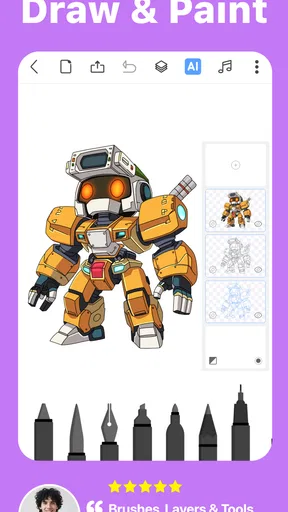
- Sketch Desk: Ideal for those who want to sketch like a pro, it offers realistic pencil and pen tools that mimic traditional drawing tools. The pressure-sensitive strokes are a nice touch for those who use a stylus.
- Doodle Desk: This one’s for when you’re feeling whimsical! With a variety of brushes and colors, it’s perfect for creating playful doodles.
- Kids Desk: A safe space for little ones to explore their creativity. It’s simple, intuitive, and filled with bright colors that will keep kids engaged.
Let’s not forget about the additional features like layers, which allow you to control different elements of your artwork separately. The color palette is extensive, and the ability to mix colors is a feature that even seasoned artists will appreciate.
Learning to Draw
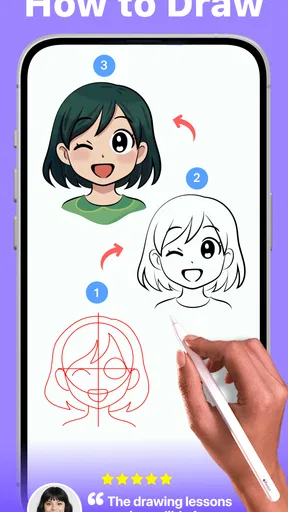
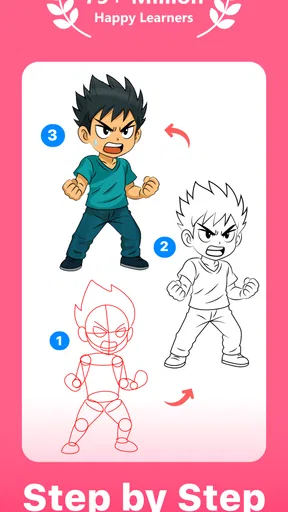
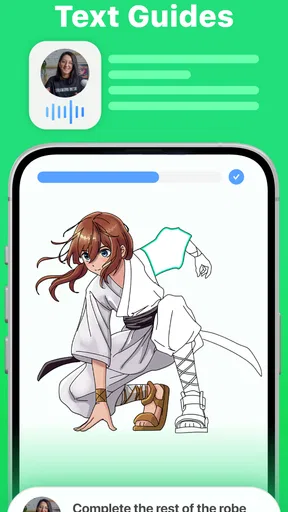
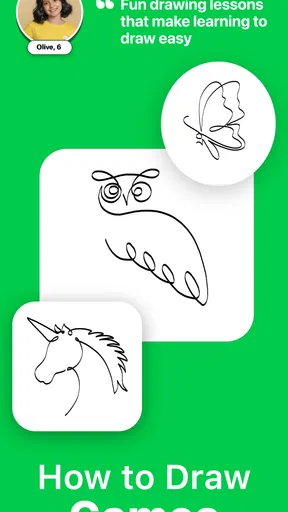
One of the standout features of this app is its learning section. If you’re just starting out or want to refine your skills, the tutorial section is gold. With step-by-step guides and video tutorials, it’s like having a personal art teacher on hand. The lessons cover everything from basic shapes to complex portraits, making it a comprehensive learning tool.
Oh, and did I mention the community section? You can share your creations with other users and get inspired by their work. It’s a great way to stay motivated and improve your skills through feedback and encouragement.
User Experience
The app runs smoothly, with minimal lag even when working on detailed projects. I’ve used it both on a tablet and a smartphone, and it adapts well to different screen sizes. The intuitive gestures for zooming and rotating your canvas make the drawing experience seamless. Plus, the undo and redo buttons are lifesavers for those inevitable artistic blunders.
The app also integrates well with social media platforms, allowing you to easily share your masterpieces with the world. Trust me, once you create something you love, you’ll want to show it off!
Picking the right way to practise
A useful approach is to treat the lessons as prompts, not recipes to copy perfectly. I’d follow a step once, then repeat the subject with one deliberate change: alter the pose, simplify the shapes, or try a different color arrangement. That second attempt is where I notice whether I understood the drawing idea or merely followed instructions. Layers help here too: keeping a rough construction separate from cleaner lines makes it easier to compare versions without losing the initial sketch.
For a beginner who feels intimidated by a blank canvas, the guided material is the strongest reason to try this app. Someone who already draws regularly may get more value from the flexible sketch tools, color mixing, and quick studies than from starting at the earliest lessons. On the other hand, a professional illustrator who needs a highly specialized production workflow, extensive export controls, or a desktop-sized workspace may prefer a dedicated art program. Drawing Desk feels better suited to learning and everyday creation than to replacing a full studio setup.
How it compares with other drawing apps
Compared with a basic note-taking app that happens to include a pen, Drawing Desk puts more emphasis on art practice: it offers distinct creative spaces, drawing tools, and lessons rather than treating sketches as annotations. Compared with a specialist illustration app, its breadth is more approachable, but a broad set of desks and lessons does not automatically make it the best choice for every advanced workflow. I’d choose it when I want instruction and casual drawing in one place; I’d look elsewhere if my priority were a very particular professional toolset or a large-screen production environment.
It also differs from learning through general video platforms. A standalone video can teach a technique, but a lesson inside a drawing-focused app puts the practice closer to the place where I’m making marks. The trade-off is that video instruction can be less convenient when connectivity is poor, while a simple sketch idea does not need a tutorial at all. I get the best balance by using lessons to learn a technique and then doing a few independent studies rather than expecting the app to supply every subject or solve every drawing challenge.
Small habits that make the tools more useful
When I’m working with layers, I try to assign each one a clear purpose instead of creating extra layers just because I can. A rough sketch, a cleaner drawing, and a color pass are easy to understand later; a stack of unnamed experiments can make a quick project harder to manage. I also avoid over-polishing a first attempt. The undo and redo controls make experimentation less intimidating, but they work best when I use them to test an idea and learn from it, not to endlessly chase a flawless line.
For a realistic daily routine, imagine having ten minutes before leaving home. I might open Sketch Desk, draw a cup or a plant using basic shapes, and stop once I have a readable outline. Later, with more time and a steadier connection, I could choose a relevant lesson, revisit the same subject, and compare the result. That split keeps the short session achievable and gives the longer one a purpose. It also means I do not need a video or community feed every time I want to practise.
Who will enjoy it, and who may not
I’d recommend it most to people who want a friendly entry into digital drawing, parents looking for a creative activity to explore with a child, and casual artists who enjoy switching between structured lessons and free sketching. Its rating averages 4.4 from around 133,000 ratings, and it has passed 10 million installs, so it has clearly reached a large audience; those figures are useful context, though they cannot tell me whether its style suits an individual learner.
I would hesitate if I wanted a distraction-free, offline-first lesson course, or if I needed certainty that every learning resource would be available on a weak connection. I’d also compare alternatives before committing to a long illustration project, especially if my workflow depends on advanced controls beyond sketching, layers, and painting practice. The app supports a minimum Android version of 6.0, and its current version is 10.3.2, which is helpful to know when checking compatibility on an older device. It was released on August 8, 2014, and its age rating is Everyone.
For someone deciding whether to try it, the practical question is not simply “Is it for beginners?” It can serve beginners, but the better question is whether you want lessons and drawing tools together. If you mainly want a blank canvas with a narrow set of tools, a lighter drawing app may feel quicker. If you want guidance, child-friendly options, and room to experiment with color and layers, Drawing Desk offers a more rounded place to start. Just keep purchase prompts and connection-dependent browsing in mind when planning how you or your family will use it.
Final Thoughts
In a nutshell, Drawing Desk: Learn to Draw is a fantastic app for anyone looking to dive into the world of digital art. Its combination of professional tools, educational content, and a supportive community makes it a standout choice. Whether you’re drawing for fun or aiming to hone your skills, this app has got you covered.
So why not give it a try? You might just find that it’s the creative outlet you’ve been searching for. Happy drawing!
Verdict
Strengths of Drawing Desk: Learn to Draw
- Intuitive interface for easy navigation.
- Wide range of drawing tools available.
- Supports multiple file formats.
- Regular updates with new features.
- Customizable workspace for personal touch.
Limitations of Drawing Desk: Learn to Draw
- Limited free version functionality.
- Occasional lag on older devices.
- Ads can be intrusive at times.
- Subscription model may be pricey.
- Requires internet for some features.
Other Releases by 4Axis Technologies
View All
Sketch Pro: Draw & Create Art
Art & Design4.6
Similar Picks in This Category
View All
Canva: AI Photo & Video Editor
Canva4.8

PENUP – Drawing-sharing SNS
Samsung Electronics Co., Ltd.4.5

Crafto
Kutumb App4.6

Sketchbook
Sketchbook4.1

ibis Paint X
ibis inc.4.5

Adobe Express: AI Photo, Video
Adobe4.6
Frequently Asked Questions
What features does Drawing Desk offer for beginners?
Drawing Desk provides a variety of features tailored for beginners, including guided tutorials, step-by-step drawing lessons, and a vast collection of templates. Users can also access a range of brushes and tools specifically designed to simplify the learning process. The app’s intuitive interface makes it easy to navigate, ensuring a smooth learning curve for new artists.
Is Drawing Desk suitable for professional artists?
While Drawing Desk is primarily designed for beginners, it offers advanced features that professionals might find useful. These include customizable brushes, layer management, and high-resolution export options. However, it may lack some of the more sophisticated tools found in dedicated professional-grade software. It’s best suited for casual sketching and learning new techniques.
Does Drawing Desk require an internet connection to function?
No, Drawing Desk does not require an internet connection for most of its core functionalities. Users can access drawing tools and save their work offline. However, an internet connection is necessary for accessing online tutorials, cloud storage features, and downloading additional resources or updates.
Are there any in-app purchases in Drawing Desk?
Yes, Drawing Desk offers in-app purchases to enhance the user experience. These may include additional brushes, premium templates, and exclusive tutorials. While the basic version is free, subscribing to a premium plan can unlock all features and remove ads, providing a more seamless and enriched drawing experience.
How can I export my drawings from Drawing Desk?
Drawing Desk allows users to export their artwork in various formats, including JPEG and PNG. You can save your drawings directly to your device or share them on social media platforms. The app also offers cloud storage options, enabling users to access their work from multiple devices, ensuring flexibility and convenience.
